
Announcements
Announcements are the primary tool instructors use to send out updates on assignments, provide additional resources, and alert students to current events or timely articles.
How-To
Access Announcements
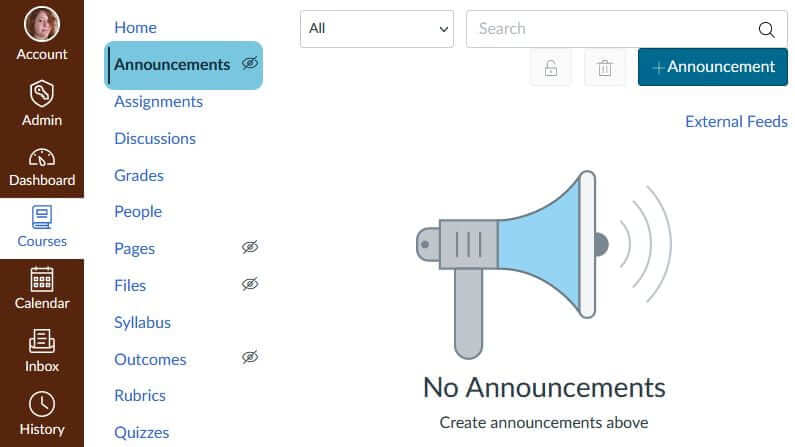
To access your course’s Announcements, select the Announcement tool from the course navigation menu.
Create Announcements
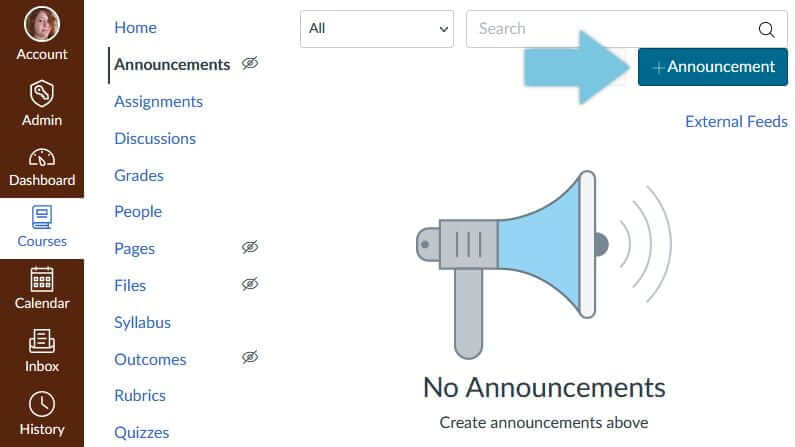
1) Create a new announcement by selecting the + Announcement button.
2) Enter the title and content of your announcement.
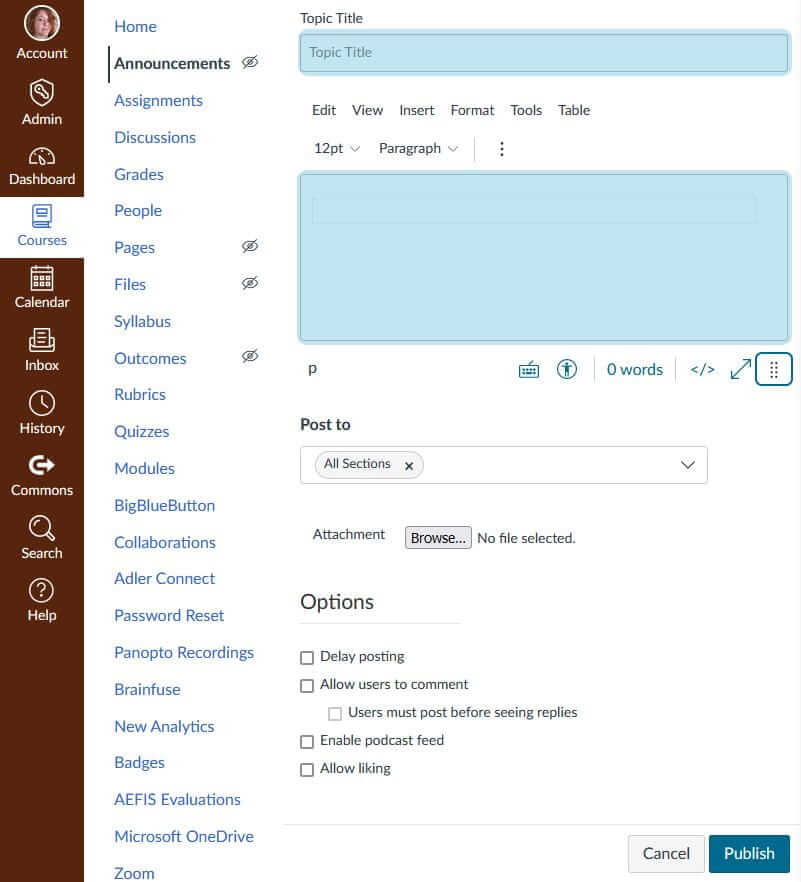
3) (Optional) Configure options as desired to:
- Select a future day/time that you’d like the Announcement to be posted.
- Allow students to comment on the announcement
- Enable a podcast feed
- Allow students to like the announcement.
4) Click Publish to post the announcement to the class.
Best Practices
The Student Perspective
If you find your students are missing your announcements, you may want to encourage them to change their settings so that they receive course announcements as emails. If students are subscribed to Course Activities > Announcement on their personal Notifications page, they will receive an email from Canvas any time you post an announcement to your course.