
Canvas Inbox
The Canvas Inbox/Conversations tool serves as the learning management’s dedicated messaging tool.
How-to
Access Inbox
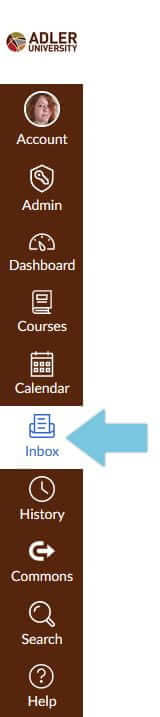
To access your Canvas messages, select the Inbox tool from the main navigation menu.
Create a New Message
1) Create a new message by selecting the Compose a New Message button.

2) Choose the course that contains the person or people with whom you’d like to communicate in the Course drop down menu.
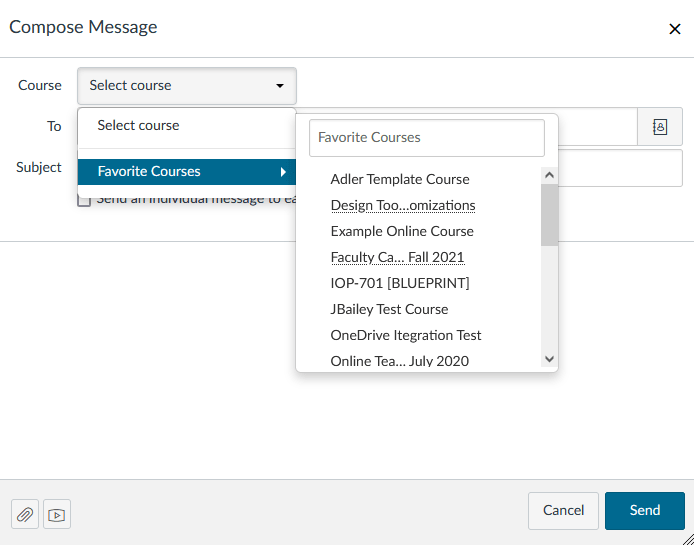
3) Use the To menu to select the person or groups of people you’re trying to message.
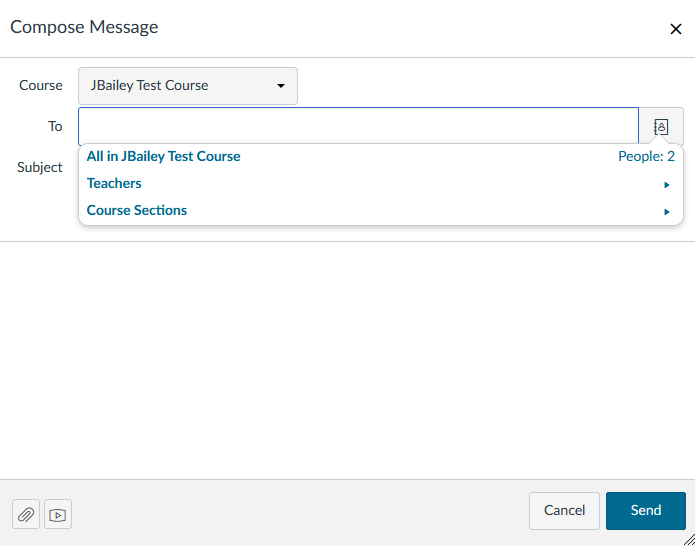
4) Type the Subject and text of the message as you would in any email application.
5) Click the Send button.
NOTE: The Canvas Inbox is not the same as email. It uses Canvas messages from user-to-user.